Ever watched a lyric video and thought, "I could do that"? You can. And it’s easier than you think. Lyric videos aren’t just for big artists anymore. With the right templates and tools, anyone can turn a song into a moving visual experience-whether it’s for a wedding, a cover, or just to share your favorite track online.
What Makes a Good Lyric Video?
A great lyric video doesn’t need fancy animations or Hollywood-level editing. It needs clarity, timing, and emotion. The words should match the beat. Each line should appear just as the singer sings it. If the text jumps around or lags behind, viewers lose connection.
Think about it: when you’re listening to a song you love, the lyrics matter. A lyric video turns that emotional moment into something you can see. That’s why simple designs often work better than busy ones. Solid backgrounds, clean fonts, and smooth transitions beat flashing colors and animated emojis every time.
Top Tools for Making Lyric Videos in 2026
You don’t need to buy expensive software. Here are the most reliable tools people are using right now:
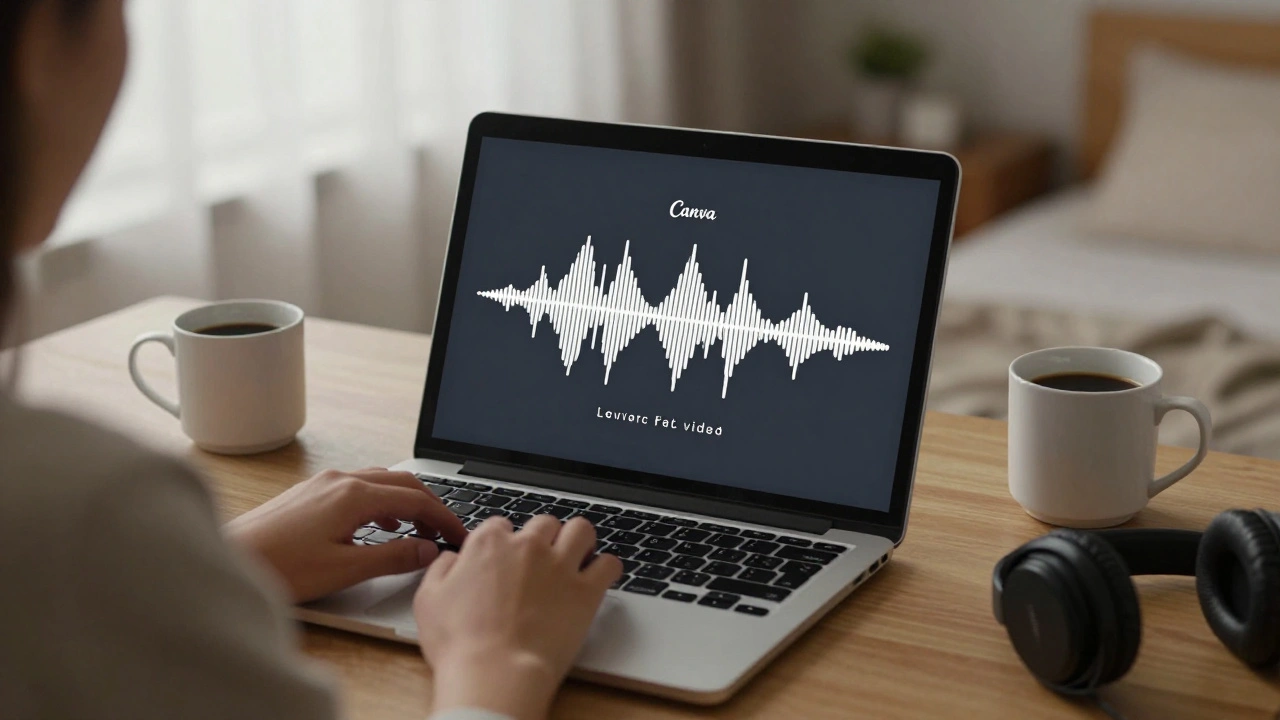
- Canva - Free templates, drag-and-drop editing, and built-in audio sync. Perfect for beginners. You can upload your song, type in the lyrics, and Canva auto-syncs the text to the beat.
- InVideo - Offers 50+ lyric video templates with customizable colors, fonts, and motion effects. The AI voice-to-text feature pulls lyrics directly from your audio file.
- CapCut - Mobile-first, but powerful. Great for TikTok and Instagram Reels. Its auto-lyric feature detects singing and splits lines automatically.
- Adobe Premiere Pro - For those who want full control. Use the Essential Graphics panel to animate text frame by frame. Requires more time, but gives you cinematic quality.
- LyricVideoMaker Pro - A niche tool built just for lyric videos. Supports karaoke-style highlighting, background video layers, and real-time preview. Costs $15/month, but saves hours of work.
Most of these tools let you export in 1080p or 4K. YouTube and Instagram both recommend 16:9 aspect ratio. If you’re posting to TikTok, go vertical (9:16).
Where to Find Templates
Templates are the shortcut to professional-looking videos. You don’t have to start from scratch. Here’s where to find the best ones:
- Canva’s Template Gallery - Search "lyric video" and filter by "free". There are over 2,000 options. Try the "Minimalist White" or "Neon Glow" styles-they’re popular for indie artists.
- Pixabay - Free downloadable After Effects and Premiere templates. Look for files labeled "lyric video motion graphics". Most are .zip files with instructions.
- Envato Elements - Subscription-based, but worth it if you make videos often. Their "Urban Lyric Pack" includes 12 dynamic templates with animated backgrounds and soundwave effects.
- YouTube Creator Studio - Some creators upload free template links in video descriptions. Search "free lyric video template download" and check the comments for working links.
Always check the license. Most free templates allow personal and commercial use, but some require attribution. If you’re posting a cover song, make sure you have rights to the audio too.
How to Sync Lyrics to the Music
This is where most people get stuck. Typing lyrics is easy. Making them match the song? Not so much.
Here’s a simple method:
- Import your song into the tool.
- Play it slowly. Pause every 3-5 seconds.
- Write down each line as it’s sung. Don’t worry about perfect punctuation.
- Use the tool’s waveform viewer (available in InVideo, CapCut, and Premiere) to see where each word hits.
- Place each lyric line right before the vocal starts. Leave a 0.2-second buffer so it doesn’t feel rushed.
- Test it. Watch it once with sound, once without. If it feels off, adjust by 0.1 seconds.
Pro tip: Use a metronome app to find the BPM of your song. If it’s 120 BPM, each beat is 0.5 seconds. That helps you space out lines evenly.
Fonts, Colors, and Design Tips
Font choice matters more than you think. A bold sans-serif like Montserrat or Roboto reads well on small screens. Avoid script fonts-they look pretty but are hard to read.
Color contrast is key. White text on a dark background works 90% of the time. Black on light works too. If you want to get creative, match the text color to the mood of the song. A sad ballad? Soft blues or grays. An upbeat pop track? Bright pinks or yellows.
Backgrounds should support, not distract. A slow-motion video of rain, a city at night, or a blurred concert crowd adds emotion without stealing focus. Avoid stock footage with too much movement-your lyrics need to stay center stage.
Common Mistakes to Avoid
- Too many words on screen - Stick to one line at a time. Two lines max. Crowded text feels chaotic.
- Ignoring silence - If there’s a 3-second instrumental break, don’t leave the last line up the whole time. Fade it out or replace it with a visual cue.
- Using copyrighted visuals - Don’t pull clips from music videos or movies. Even if it’s just for Instagram, you risk a takedown.
- Not testing on mobile - 70% of lyric videos are watched on phones. Zoom in on your preview. Can you read the text from across the room?
- Forgetting the outro - End with the artist’s name and song title. It’s polite, and it helps with discovery.
Legal Stuff You Can’t Ignore
If you’re making a lyric video for a song you didn’t write, you need to be careful. You can’t just upload it to YouTube and expect it to stay up.
Here’s the reality:
- YouTube’s Content ID system scans for audio matches. If the song is registered, your video might get muted or demonetized.
- Instagram and TikTok are more lenient-but they still remove videos if the rights holder complains.
- For personal use (family, friends, private social media), you’re usually fine.
- For public posting, consider using royalty-free music or songs in the public domain (pre-1928).
- Some artists encourage fan videos. Check their website or social media for a "fan content policy." Some even provide official templates.
If you’re serious about sharing, record your own cover. Sing it. Record it. Then make the video. That’s 100% legal and often more meaningful.
Putting It All Together: A Real Example
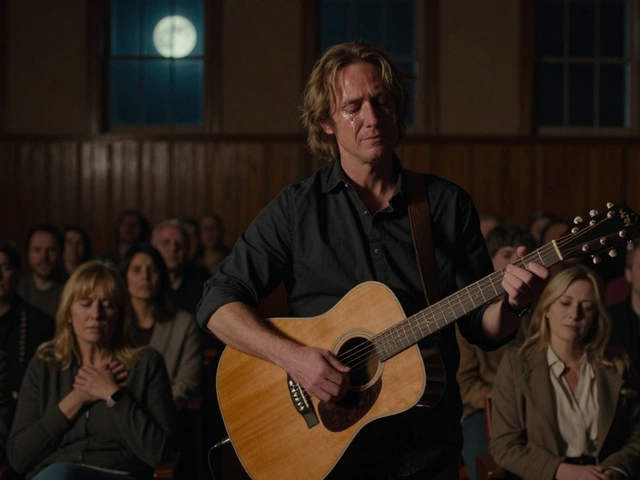
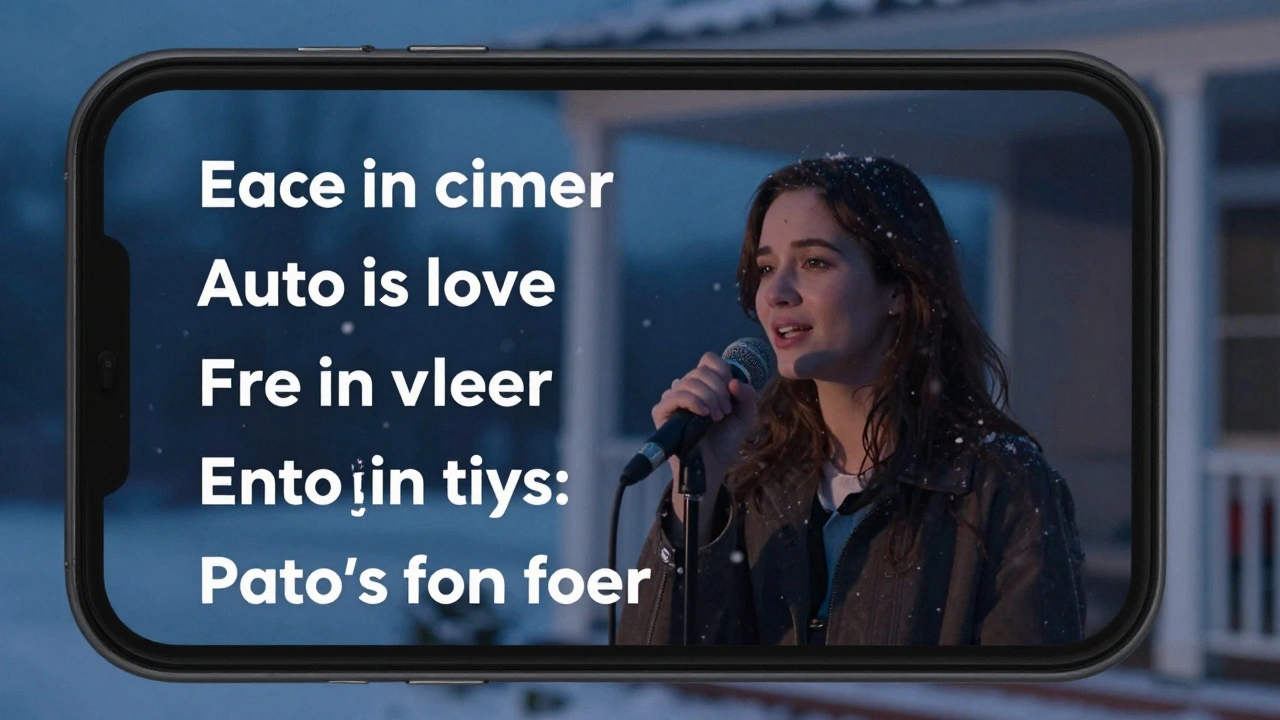
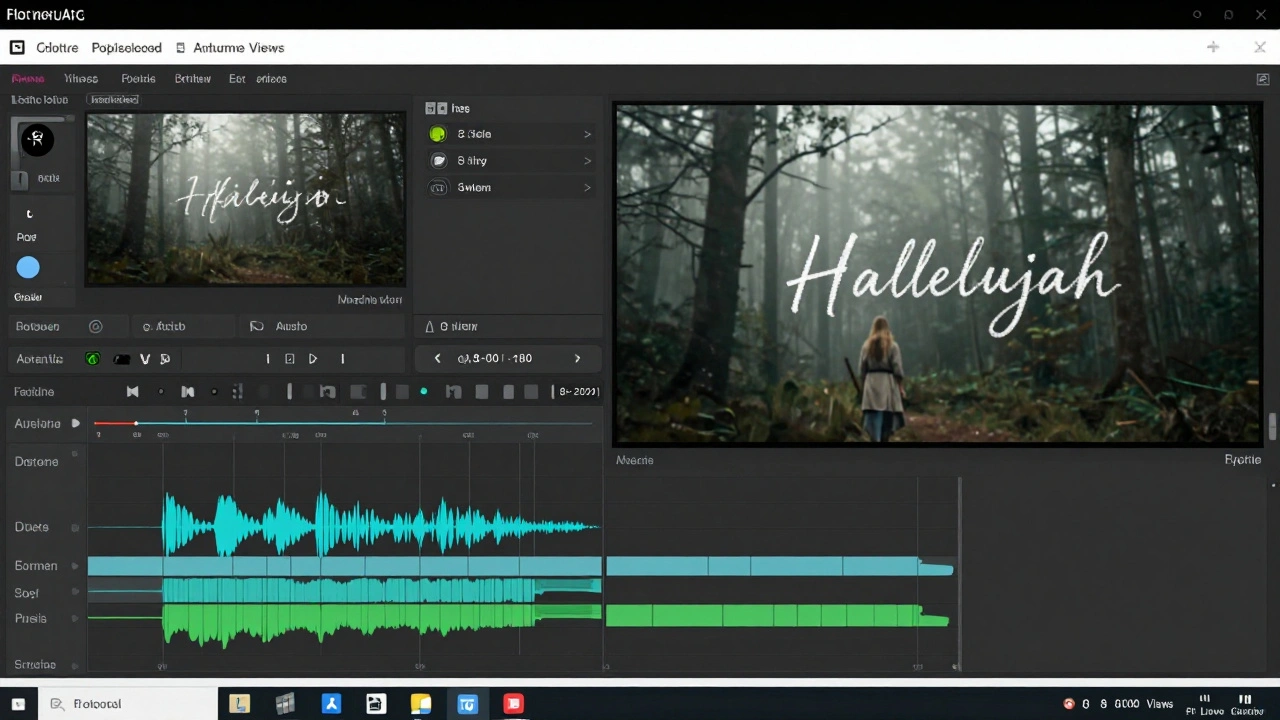
Last month, a user in Portland made a lyric video for "Hallelujah" using CapCut. She recorded herself singing it on her porch. Used the auto-lyric tool to pull the words. Picked the "Winter Fade" template (dark blue background, slow snowfall effect). Adjusted timing by hand-each line matched her breath. Uploaded it to YouTube. Got 8,000 views in two weeks. No ads. No promotion. Just a quiet, honest video.
You don’t need to be perfect. You just need to start.
Can I make a lyric video for free?
Yes. Canva, CapCut, and InVideo all offer free plans with enough features to make a high-quality lyric video. You’ll have watermarks on some templates, but you can remove them by exporting with a free account. Just avoid paid-only effects if you’re on a budget.
What’s the best aspect ratio for lyric videos?
Use 16:9 for YouTube and websites. Use 9:16 (vertical) for TikTok, Instagram Reels, and Stories. Most tools let you switch between them in export settings. If you’re unsure, make the vertical version first-it works on all platforms.
How long should a lyric video be?
Keep it under 5 minutes. Most viewers lose interest after that. If the song is longer, trim the intro or outro. Focus on the most emotional part-the chorus, the bridge. You can always make a second video for the full version later.
Do I need to be a designer to make a lyric video?
No. The tools today are built for anyone. You don’t need to know layers, keyframes, or color theory. Just pick a template, type in the lyrics, adjust the timing, and hit export. If you can use a phone, you can make a lyric video.
Can I use a lyric video to promote my own music?
Absolutely. Lyric videos are one of the most effective ways to share original music. They help listeners connect with the words, which builds emotional loyalty. Many independent artists use them as lead magnets-linking to streaming platforms in the description. Add your name, website, and social handles in the final frame.