Creating a DDP (Disc Description Protocol) file for a CD music release isn’t just another step in the process-it’s the final gate before your music hits physical stores, radio stations, or fan collections. Get it wrong, and your album might skip, mute tracks, or fail to play on half the players out there. Get it right, and your music ships cleanly, exactly as intended. This checklist cuts through the noise and gives you exactly what you need to deliver a flawless DDP for CD replication.
Start with the Final Master
Your DDP is only as good as the master it comes from. That means no more editing after you’ve exported it. If you’re still tweaking EQ, compression, or track gaps, you’re too early. The master must be 100% locked. Most mastering engineers deliver a 24-bit, 44.1 kHz WAV file. That’s the standard. Anything else-like 32-bit float or 48 kHz-will need conversion before DDP creation. Don’t skip this. CD players don’t read 48 kHz files. They expect 44.1 kHz. If your master is 48 kHz, it gets resampled, and that can introduce artifacts. Always confirm sample rate before export.
Track Order and Gaps Matter
Track order isn’t just about playlist flow-it’s baked into the DDP’s metadata. Each track must be in the exact sequence you want on the final CD. Missing a track? You’ll get a blank disc. Extra track? The replicator might cut it out, or worse, play it as silence. Track gaps are just as critical. A 2-second gap between tracks? That’s fine. A 15-second gap? That’s not a gap-it’s a pause, and some CD players will freeze or glitch. Most replicators expect gaps between 0.5 and 3 seconds. If you’re using crossfades or seamless transitions (like on a live album), make sure your DDP software supports it. Some tools auto-insert silence. You need to disable that.
Use a Reliable DDP Creator
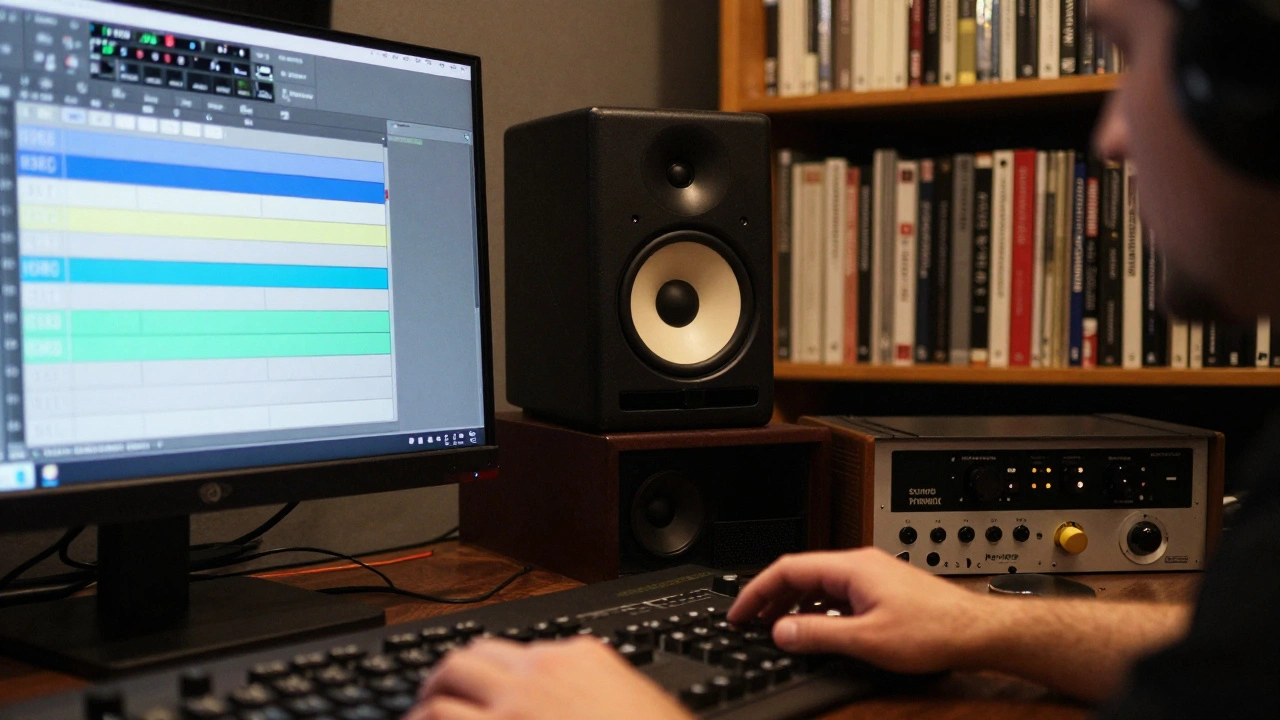
Not all DDP tools are equal. Reaper, Pyramix, and Sonoris DDP Creator are industry standards. Audacity? No. GarageBand? Absolutely not. These lack proper DDP export. Even some DAWs like Logic Pro only export DDP as an option if you have the right plugin. If you’re using a DAW that doesn’t natively support DDP, export your tracks as WAVs and use a dedicated tool. Sonoris DDP Creator, for example, lets you drag and drop WAV files, set track gaps, embed ISRC codes, and generate the full DDP image. It also validates the output before you export. Validation is non-negotiable. A single corrupted sector can trash the whole batch.
Embed ISRC Codes
ISRC (International Standard Recording Code) is your track’s fingerprint. It’s how royalties get tracked, how radio stations log plays, and how streaming services link back to your master. If you don’t embed ISRCs in the DDP, you’re leaving money on the table. Each track needs its own unique 12-character code. You can generate these for free through your country’s ISRC agency (in the U.S., it’s the RIAA). Don’t reuse codes. Don’t leave them blank. Most DDP tools have a field for ISRC entry. Fill it in. Double-check. Then check again. A single typo-like an O instead of a zero-means your track won’t be tracked at all.
Set the Correct Pre-emphasis
Pre-emphasis is a relic from analog tape days, but it still shows up. If your master has pre-emphasis enabled, it means the CD player will apply a de-emphasis filter during playback. If it’s on by accident, your highs will sound dull. If it’s off when it should be on, your highs will sound harsh. For 99% of modern music, pre-emphasis should be OFF. Only use it if you’re mastering a reissue of a 1980s CD that originally had it. Most DDP tools let you toggle this. Look for a checkbox labeled “Pre-emphasis” or “IEC 908.” Leave it unchecked unless you have a specific reason not to.
Generate the DDP Image Correctly
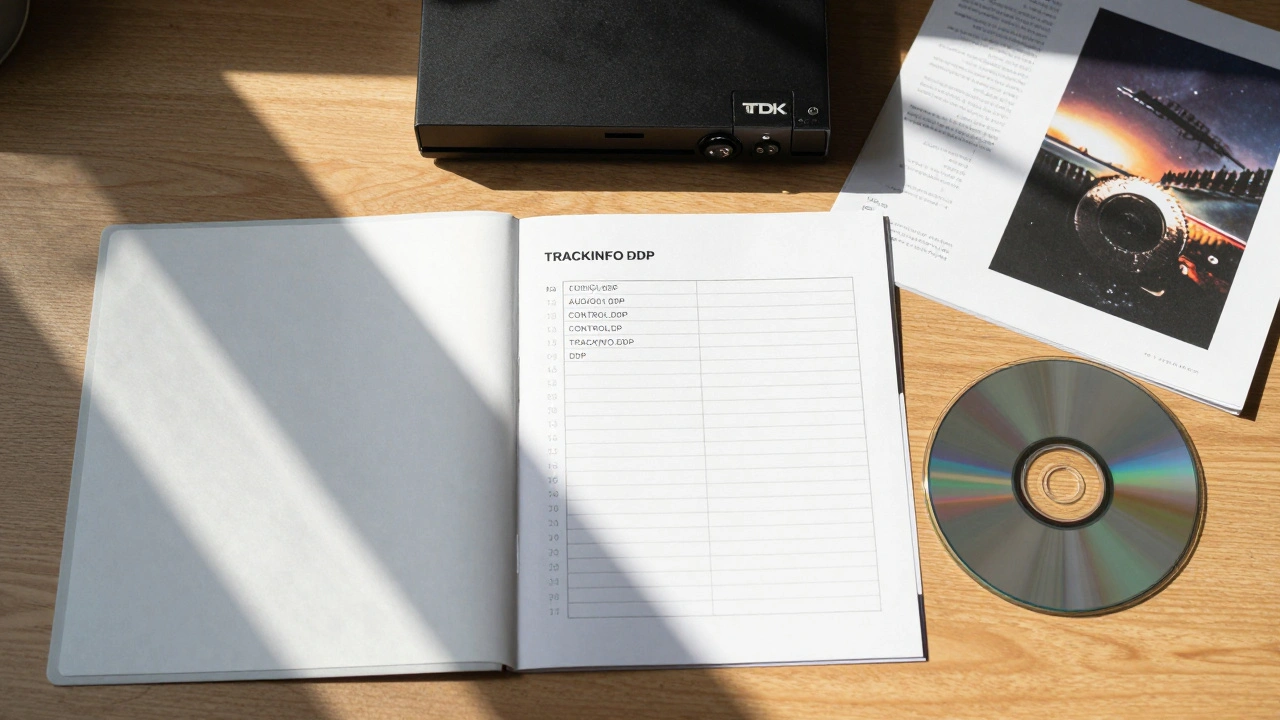
The DDP image isn’t a folder-it’s a single file package. It includes the audio data, track indexes, ISRCs, and control data in one .ddp folder. Never zip it. Never rename it. Never split it. The replicator expects one folder with specific files inside: AUDIO01.DDP, CONTROL.DDP, and sometimes TRACKINFO.DDP. If you’re sending this to a replicator, ask them what format they prefer. Some want the entire folder zipped. Others want the files uploaded separately. Always confirm. And always name the folder something clear: “YourBand_AlbumName_DDP_v2”.
Validate Before Sending
Validation is your last safety net. Most DDP tools have a “Validate” button. Click it. It checks for sample rate mismatches, missing tracks, silent tracks longer than 2 seconds, or corrupted audio blocks. If it says “OK,” you’re good. If it flags anything, fix it. Don’t ignore warnings. A silent track longer than 2 seconds? That’s a red flag. A track that’s 3 seconds long but only has 0.5 seconds of audio? That’s a problem. Replicators don’t fix your files. They just burn them as-is. If you send a broken DDP, they’ll tell you it’s invalid-and you’ll lose time and money.
Test the DDP on a Real CD
Even after validation, test it. Burn the DDP image to a CD-R using a professional burner like a TDK or Verbatim. Don’t use a cheap burner from Amazon. Play it on a car stereo, a home CD player, and a computer. Listen for pops, skips, or volume drops. Check if track numbers display correctly. If it plays perfectly on three different devices, you’re ready. If not, go back to the master. Something’s off. This step catches 30% of issues that validation misses.
Send the Right Files to the Replicator
Most replicators want three things: the DDP folder, a printed CD master checklist, and a PDF of the artwork. The checklist should include: track titles, ISRCs, running times, and whether you want a barcode. Never assume they know your album name. Always label your files clearly. If you’re sending a 2026 release, write “2026” in the filename. If you’re using a barcode, make sure it’s 100% scannable. Use a vector PDF, not a JPG. Replicators will reject low-res art. And always confirm turnaround time. Some places take 7 days. Others take 3 weeks. Plan accordingly.
What Not to Do
- Don’t use MP3s or AAC files to create your DDP.
- Don’t let your mastering engineer “just send the WAVs” without DDP.
- Don’t assume your DAW exports DDP correctly without checking.
- Don’t skip ISRC codes because “it’s just a CD.”
- Don’t send a zipped folder with random files inside.
Final Checklist Summary
- Master is 24-bit, 44.1 kHz WAV
- Tracks are in correct order with 0.5-3 second gaps
- ISRC codes embedded for every track
- Pre-emphasis is OFF
- DDP created with professional tool (Sonoris, Pyramix, Reaper)
- DDP folder contains AUDIO01.DDP, CONTROL.DDP, TRACKINFO.DDP
- DDP validated with no errors
- Tested on multiple CD players
- Artwork is high-res PDF with barcode
- Replicator specs confirmed before sending
There’s no magic here. Just precision. One wrong gap, one missing ISRC, one unvalidated file-and your entire run of 5,000 CDs could sit in a warehouse, unusable. Do it right once. Then you never have to do it again.
What is a DDP file for CD music releases?
A DDP (Disc Description Protocol) file is a standardized digital package that contains all the audio, track information, timing, and metadata needed to replicate a CD. It replaces older methods like sending physical DAT tapes or individual WAV files. Replicators use DDP to burn the master CD, ensuring every copy plays identically.
Can I create a DDP file in Audacity or GarageBand?
No. Neither Audacity nor GarageBand can export a true DDP image with embedded ISRC codes, track indexes, or control data. They’re great for editing, but not for final replication. Use a professional tool like Sonoris DDP Creator, Reaper, or Pyramix to generate a valid DDP package.
Do I need ISRC codes for a CD release?
Yes. ISRC codes are required for royalty tracking, radio play logging, and digital cataloging. Without them, your music won’t be properly credited or paid for. You can get free ISRCs from your country’s agency-in the U.S., that’s the RIAA.
What sample rate should my master be for CD?
44.1 kHz. CDs use this sample rate by standard. Even if your master was done at 48 kHz or 96 kHz, it must be converted to 44.1 kHz before DDP creation. Using the wrong rate can cause playback issues on older CD players.
How long does it take to get CDs made after sending a DDP?
Most replicators take 7-14 business days after receiving a valid DDP. Rush orders are possible but cost extra. Always confirm turnaround time before sending. Factor in shipping time if you’re ordering from overseas.