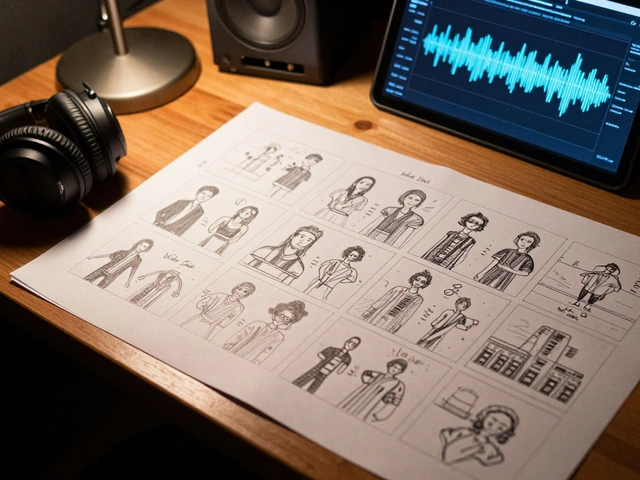
Imagine sending a massive session file to your mastering engineer or collaborator. You hit send, feeling confident that the audio is there. But two hours later, your phone rings. They ask, "Which version is the final one?" or "What did you mean by 'try more reverb on the snare'?" This moment of confusion is common in music production. It happens because context often gets lost when files move from one computer to another.
The solution isn't just about exporting WAV files. It is about documenting the state of your project at specific moments. Printing mix notes and creating distinct mix versions within your Digital Audio Workstation (DAW) are essential skills for any serious producer. These practices ensure that everyone involved understands the creative decisions made during the process. They turn a chaotic folder of files into a clear, professional workflow.
Why Context Matters More Than Files
Audio files are static. A stereo bounce tells you nothing about how it was made. It doesn't reveal if the bass was boosted at 100Hz or if the vocal compression was aggressive. When you collaborate with others, they need more than just sound; they need intent. Without notes, a collaborator might spend hours trying to replicate a sound you achieved with a simple plugin setting, only to go down the wrong path.
Consider a scenario where you are mixing a track for an artist. You create three different approaches: one bright and radio-ready, one dark and moody, and one raw and live-sounding. If you export these as Final_1.wav, Final_2.wav, and Final_3.wav, you are guessing which one the client prefers. By printing notes directly into the project metadata or accompanying documents, you provide a narrative. You explain why Version B has less high-end EQ. This saves time and reduces friction in the communication chain.
Defining Mix Versions vs. Mix Notes
To streamline your workflow, you must distinguish between two related concepts: mix versions and mix notes. They serve different purposes but work together to document your progress.
Mix versions are distinct states of the entire mix. They represent significant changes in balance, arrangement, or processing. For example, "Vocal Up 3dB" or "No Reverb" are versions. Each version should be treated as a separate entity in your file management system. You might save these as duplicate projects or use your DAW's snapshot feature.
Mix notes are textual annotations attached to specific points in the timeline or to specific tracks. They describe minor adjustments, ideas, or questions. A note might say, "Try adding saturation here" or "Check phase alignment." These are ephemeral thoughts captured before they fade from memory. While versions capture the result, notes capture the process.
| Feature | Mix Versions | Mix Notes |
|---|---|---|
| Purpose | Capture major creative directions | Record specific observations or ideas |
| Scope | Entire project or stem group | Single track, region, or marker |
| Storage | Duplicate project files or snapshots | Text fields, markers, or external docs |
| Frequency | Infrequent (every few hours/days) | Frequent (during active mixing) |
| Recipient | Client, mastering engineer, collaborator | Self, assistant engineer, future self |
Implementing Mix Versions in Your DAW
Most modern Digital Audio Workstations offer built-in tools to manage multiple versions without creating messy folders of duplicate files. Using these native features keeps your project lightweight and organized.
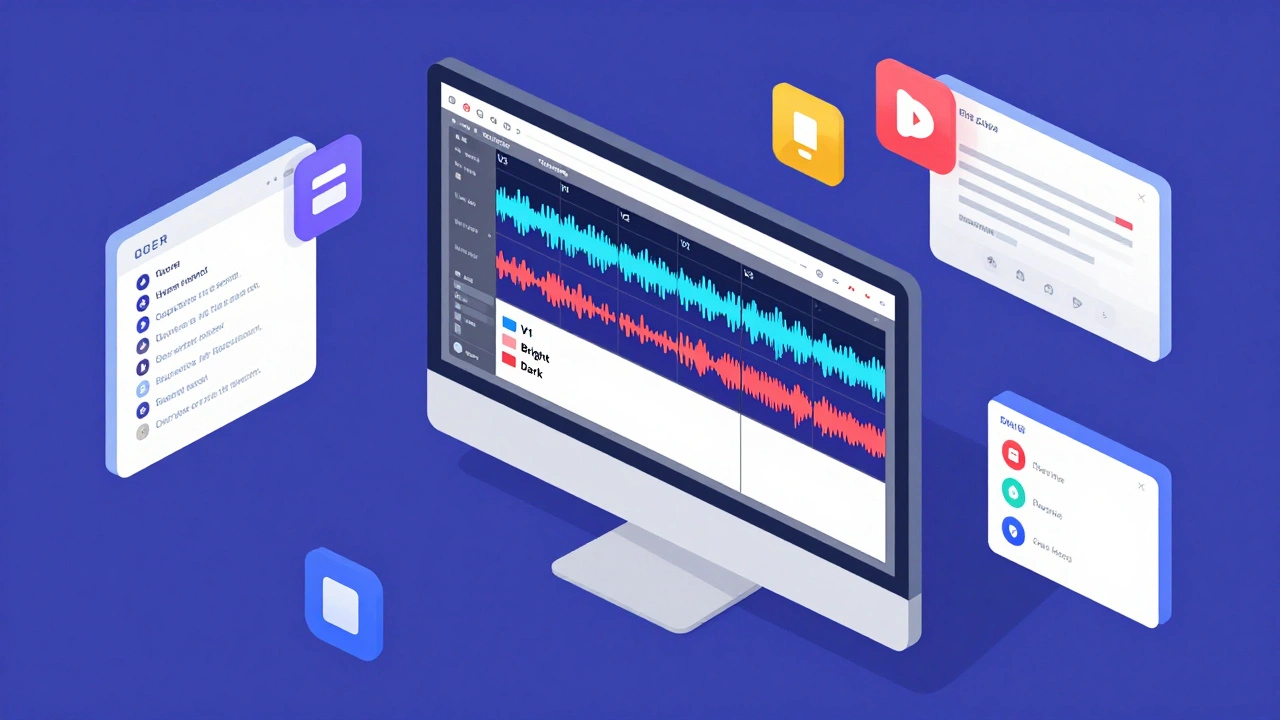
In Ableton Live, you can use the "Session View" to store different clip arrangements and then switch to "Arrangement View" to render them out. However, for true mix variations, using "Sets" or duplicating the project file with clear naming conventions like Project_Name_V1_Bright.alp is often clearer for collaborators who don't use Ableton. If you are working with stems, export each version separately with descriptive filenames.
Logic Pro has a powerful "Versioning" feature built right into the project inspector. You can create new versions that inherit all audio regions and edits but allow you to change automation, plug-in settings, and track visibility. This is ideal for A/B testing different vocal treatments or drum balances. When you print these versions, Logic allows you to export them individually, ensuring the recipient gets exactly what you intended.
Pro Tools users rely on "Track Stacks" and "Templates" to some extent, but the most robust method is using "Sessions" with different names. Pro Tools also supports "Markers" extensively, which can be used to denote version start points. For collaborative workflows, exporting a "Consolidated Session" with all relevant versions clearly marked in the header is standard practice.
Cubase offers "Variation Maps," which allow you to swap entire sections of arrangement or mix settings instantly. This is great for demoing different structures to a client. To share these, you would typically export the audio for each variation map separately, labeling them clearly in the export dialog.
Capturing and Printing Mix Notes
Notes are easier to lose than versions. If you don't write them down, they disappear. The key is to integrate note-taking into your mixing routine so it becomes automatic.
One effective method is using the marker list in your DAW. Most DAWs allow you to add text to markers. Instead of just marking "Verse 1," mark "Verse 1 - Try brighter piano." This links the idea directly to the location in the timeline. When you print or export the session, include the marker list as a text file. Many DAWs allow you to export markers to CSV or TXT formats.
Another approach is using the track comments field. In Studio One and FL Studio, you can add comments to individual tracks or patterns. Use this space to note specific plugin chains or gain staging details. For example, "Vocal Track: Used FabFilter Pro-Q 3 for surgical cuts at 4kHz." This helps anyone reopening the project understand your signal flow.
If your DAW lacks robust note-taking features, keep a simple text document open alongside your project. Use timestamps to correlate notes with specific moments in the song. Copy-paste this document into the email or drive link you send to your collaborator. Consistency is key. Always include this document when handing off files.
File Naming Conventions for Clarity
Even the best notes and versions fail if the files themselves are confusing. Adopt a strict naming convention that includes version numbers and brief descriptors. Avoid generic terms like "Final" or "Best." These terms are subjective and lead to confusion.
A good format is: [ProjectName]_[Date]_[VersionID]_[Description]. For example:
MySong_20260510_V1_BrightMix.wavMySong_20260510_V2_DarkMix.wavMySong_20260510_V3_NoReverb.wav
This structure allows anyone to sort files chronologically and understand the differences at a glance. Include the date to ensure you always have the latest iteration. Use version IDs (V1, V2, etc.) to indicate progression. Add a short description to highlight the main change.
Sharing Metadata and Documentation
When you send files to a mastering engineer or collaborator, you are not just sending audio. You are sending a package. This package should include:
- The audio files (WAV or AIFF, 24-bit, 44.1kHz or 48kHz).
- A PDF or text file containing the mix notes and version descriptions.
- A reference track list, if applicable, showing songs you used for comparison.
- Any specific technical requirements, such as LUFS targets or peak limits.
Some DAWs allow you to embed metadata directly into the exported audio files. Use the "Comment" or "Description" field in the export dialog to paste a summary of the mix notes. This ensures the notes travel with the file, even if the separate document gets lost. Tools like iZotope RX or dedicated metadata editors can help verify that this information is preserved.
Common Pitfalls to Avoid
Many producers fall into the trap of over-documenting. Writing every single tiny adjustment creates noise rather than clarity. Focus on significant decisions and creative choices. Ignore trivial tweaks unless they are critical to the sound.
Another pitfall is assuming the recipient knows your DAW-specific terminology. Avoid jargon like "Send 1 Pre-Fader" without explanation. Use plain language: "Reverb level set to 30%." This makes your notes accessible to engineers using different software.
Finally, do not forget to update your notes when you make changes. Outdated notes are worse than no notes. They mislead the recipient and waste their time. Treat your documentation as a living part of the project, not an afterthought.
What is the difference between a mix version and a mix note?
A mix version is a complete state of the mix, representing major changes in balance or processing. A mix note is a textual annotation describing specific ideas, observations, or minor adjustments tied to a particular point in the timeline or track.
How do I export mix notes from my DAW?
Most DAWs allow you to export markers or comments as text or CSV files. In Ableton Live, you can copy markers to a text editor. In Logic Pro, you can export project notes. Alternatively, embed notes in the audio file's metadata during export.
Should I send multiple mix versions to my client?
Yes, if they represent distinct creative directions. Sending 2-3 varied options helps clients articulate their preferences. Clearly label each version with its unique characteristics to avoid confusion.
Can I embed notes directly into WAV files?
Yes, many DAWs allow you to add ID3 tags or BWF metadata to exported audio files. Use the comment or description field to include brief notes. Ensure your recipient's software can read this metadata.
What is the best file naming convention for mix versions?
Use a format like [ProjectName]_[Date]_[VersionID]_[Description]. For example, MySong_20260510_V1_BrightMix.wav. This ensures chronological sorting and clear identification of changes.