It’s midnight on music release day. Your album just dropped on Spotify, Apple Music, and YouTube. Fans are streaming. Comments are flooding in. And then - a tweet: "The chorus sounds like a robot choking." You check. It’s true. The high end is clipped. The kick drum is phasey. Something’s wrong with the DSP processing.
This isn’t rare. Every year, dozens of independent artists and labels hit this exact wall. DSP glitches on release day aren’t about bad mixing. They’re about how streaming platforms process audio after you upload it. You did everything right. The masters sounded perfect in your studio. But now, after being run through Spotify’s or Apple’s loudness normalization, your track sounds broken. Here’s how to fix it - before your fans start leaving reviews.
What Exactly Is a DSP Glitch?
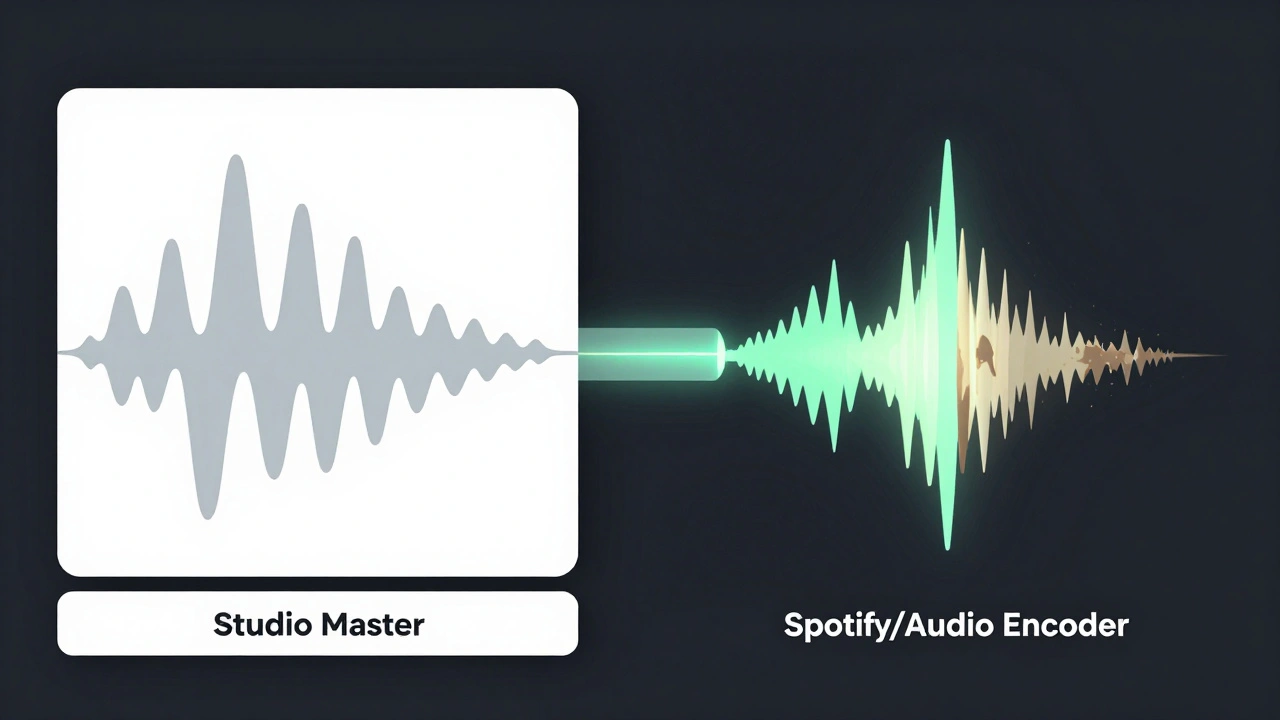
DSP stands for Digital Signal Processing. Every major streaming service applies its own set of algorithms to every track you upload. These aren’t just volume adjustments. They’re complex chains: loudness normalization, dithering, sample rate conversion, bitrate compression, and sometimes even dynamic range shaping. When your file doesn’t match their expectations, things go sideways.
Common glitches you’ll hear:
- Clipping - High frequencies sound crunchy, like a distorted guitar pedal gone wrong.
- Phase cancellation - The stereo image collapses. Instruments disappear in headphones.
- Low-end boom - Bass becomes muddy, especially on mobile speakers.
- Artificial brightness - High-end gets artificially boosted, making cymbals and vocals sound metallic.
These aren’t bugs in your DAW. They’re side effects of how platforms handle files. The worst part? You won’t see them in your studio monitors. You only hear them after the track hits the streaming server.
Why This Happens on Release Day
Release day is the perfect storm. You’ve spent weeks fine-tuning the mix. You’ve tested it on car speakers, AirPods, and home systems. You’ve even played it for friends. But none of those tests simulate what happens when Spotify’s encoder runs your 24-bit WAV through a 256kbps AAC transcoder while applying -14 LUFS loudness normalization.
Here’s the hidden trigger: most artists upload files that are too loud. They think louder = better. But streaming platforms don’t want loud. They want consistent volume across all tracks. If your master hits -8 LUFS, the platform has to turn it down by 6 dB - and then it has to compensate. That’s when the DSP starts applying gain, EQ, and compression in ways you didn’t intend.
Another common mistake: uploading files with sample rates or bit depths that don’t match the platform’s pipeline. Apple Music expects 44.1kHz/16-bit. Spotify uses 44.1kHz/24-bit. If you upload a 96kHz/32-bit file, their system has to resample it. That’s where phase shifts and aliasing creep in.
How to Check for Glitches Before Release
You can’t wait until release day to find out. You need to simulate the streaming environment before you hit upload.
Here’s what to do:
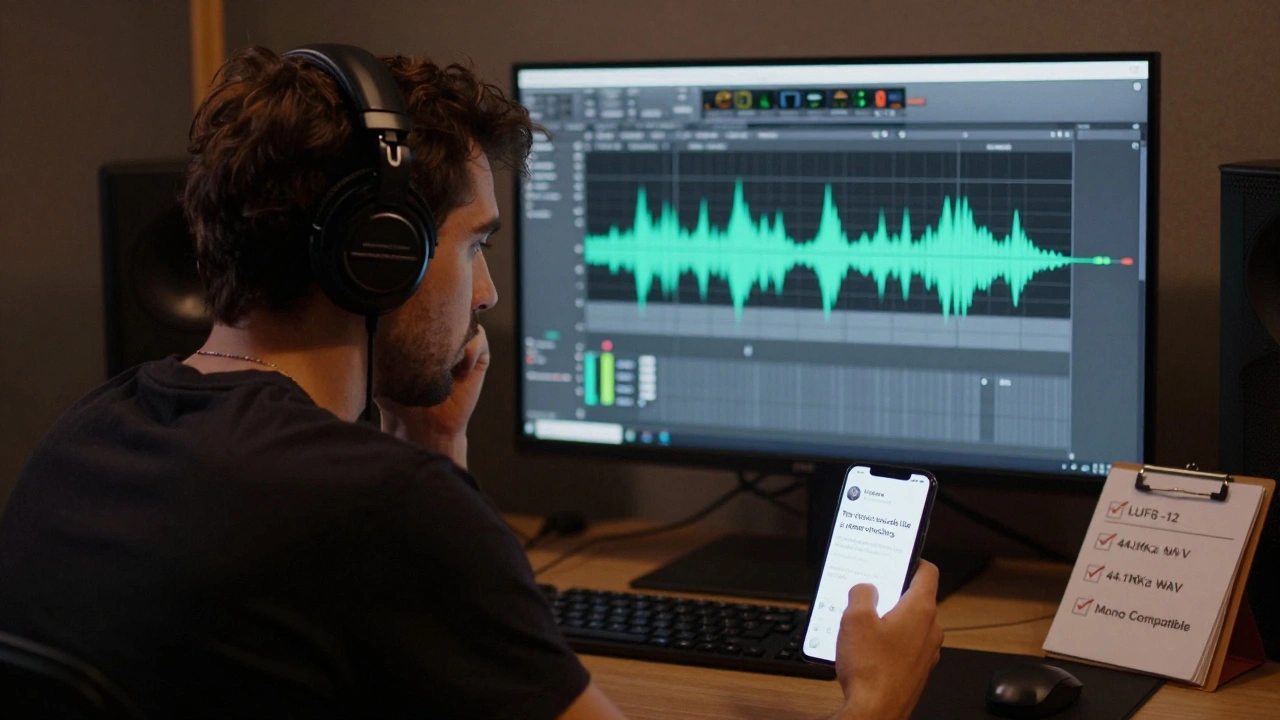
- Export a clean master - No limiting. No clipping. Aim for -6 dB peak and -10 to -12 LUFS integrated loudness. This gives the platform room to work.
- Use a streaming simulator - Tools like LUFS Meter by a free plugin that shows integrated loudness and true peak values or Cloud Mastering by a cloud-based mastering service that simulates Spotify, Apple, and YouTube processing let you upload your file and see how it’ll sound after processing.
- Test on real devices - Download your own track after it’s live. Listen on an iPhone, Android phone, Bluetooth speaker, and laptop. Don’t trust studio monitors alone.
- Check the waveform - Open the file in Audacity or Adobe Audition. Look for flat-topped peaks (clipping) or sudden amplitude drops (phase issues).
If you hear distortion or phase collapse in the simulator, go back to your master. Reduce the master limiter. Tame the high end. Re-balance the stereo image. Don’t just turn down the volume - fix the source.
What Platforms Do to Your Audio
Not all platforms treat audio the same. Here’s what you’re really up against:
| Platform | Target Loudness | Sample Rate | Bitrate | Common Glitch |
|---|---|---|---|---|
| Spotify | -14 LUFS | 44.1 kHz | 160-320 kbps Ogg Vorbis | High-end sibilance boost |
| Apple Music | d>-16 LUFS | 44.1 kHz | 256 kbps AAC | Low-end compression |
| YouTube | -13 LUFS | 48 kHz | 128 kbps AAC | Sample rate conversion artifacts |
| Tidal | -14 LUFS | 44.1 kHz | 1411 kbps FLAC | Minimal processing - but still clips if too loud |
Notice something? Apple Music is the strictest. If your master is too loud, it’ll squash your bass. Spotify is the most aggressive with EQ - it’ll boost your sibilance to make vocals cut through. YouTube? It’ll mess with your sample rate if you upload 48kHz files. Tidal is the only one that doesn’t compress much - but if your peak hits above 0 dBFS, it’ll clip anyway.
Pro Tips to Avoid Glitches
- Never use brickwall limiting - If your limiter is set to -0.1 dB, you’re asking for trouble. Leave at least 0.5 dB of headroom.
- Use dithering - When reducing bit depth (e.g., from 24-bit to 16-bit), always apply dithering. It prevents quantization noise.
- Check mono compatibility - Sum your stereo track to mono. If the bass disappears or the vocals cancel out, you’ve got phase issues.
- Upload the right format - 44.1 kHz, 16-bit or 24-bit WAV. No MP3. No AIFF. No FLAC unless you’re on Tidal.
- Test with a real release - Upload a single 2 weeks before your album. Listen for a week. If it sounds good everywhere, you’re ready.
One producer in Portland told me they lost 300 streams on their first release because the hi-hats sounded like static on Android phones. They fixed it by reducing the top end by 2 dB and adding a gentle high-shelf roll-off at 18 kHz. Simple. But they didn’t know until they heard it on a $50 Bluetooth speaker.
What to Do If It’s Already Live
If the glitch is already live, don’t panic. You can fix it - but it’s not easy.
- Wait 24-48 hours - Sometimes, the platform’s encoder needs time to reprocess your file. If it’s a temporary glitch, it may fix itself.
- Upload a corrected version - Most platforms allow you to re-upload the same track. Delete the old one, upload the new master. It can take up to 72 hours to update everywhere.
- Reach out to support - If it’s a major label or distributor, they have direct contacts with streaming platforms. Independent artists can email support, but don’t expect fast results.
- Be transparent - Post on Instagram: "We heard the issue. We’re fixing it. Thanks for your patience." Fans appreciate honesty more than perfection.
One artist in Portland had to re-upload three tracks after release day. It took four days for Spotify to update. But because they posted a quick video explaining what happened - and how they fixed it - their engagement went up. Fans felt involved. They didn’t leave. They stayed.
Final Checklist Before You Hit Upload
- Is your master under -12 LUFS?
- Are peaks below -0.5 dBFS?
- Did you export as 44.1 kHz, 16-bit or 24-bit WAV?
- Did you test it on a phone and Bluetooth speaker?
- Did you check mono compatibility?
- Did you use dithering when reducing bit depth?
If you answered yes to all six, you’re in the top 5% of artists who avoid DSP disasters. Most don’t. You will.
Frequently Asked Questions
Why does my music sound fine in my studio but broken on Spotify?
Your studio monitors play back your file exactly as it is. Spotify runs it through a loudness normalization and bitrate compression pipeline. If your master is too loud or too bright, Spotify’s system will over-correct, causing clipping, phase issues, or unnatural EQ boosts. Always simulate streaming processing before uploading.
Should I use a mastering engineer for release day?
Yes - but not just any mastering engineer. Look for someone who specializes in streaming delivery. Ask if they use LUFS meters and streaming simulators. A good mastering engineer won’t just make it loud. They’ll make it survive the platform’s processing. Avoid engineers who say "louder is better." That’s the problem, not the solution.
Can I fix a glitch after release without re-uploading?
No. Once a track is processed by a streaming platform, you can’t tweak it remotely. The only way to fix it is to upload a new version of the file. Some distributors will do this for you automatically if you request it. Others won’t. Always test before release.
Do all platforms process audio the same way?
No. Spotify boosts high frequencies to help vocals cut through. Apple Music compresses low end to prevent distortion on small speakers. YouTube resamples audio if you upload 48kHz files, which can create artifacts. Tidal barely processes anything - but still clips if you go over 0 dBFS. Each platform has its own rules.
Is it worth uploading in 24-bit instead of 16-bit?
Yes, if you’re uploading to Spotify or Tidal. They accept 24-bit files and preserve more detail. But if you’re targeting Apple Music, 16-bit is fine - they convert everything to 16-bit anyway. The key is consistency: match the platform’s expected format. Don’t upload 32-bit files - they’ll just get downsampled poorly.